

CONNECT HELPCENTER · ORDERS AND CUSTOMERS
Message Center: conversations with customers and Connect administration
Keep agreements connected to the right conversation and order. Find the message, check the context, reply clearly, and verify that the reply was actually saved in the history.
The screenshots use the English interface and sample data. The numbers link locations in the image to the localized instructions. Click the image for a larger view. Actual orders and customer data were not modified for the demonstration.
Select the right communication channel
For customers, open Customers → Message Center. For conversations with Connect administration, open Vendors → Message Center. The side navigation for customer and administrator communication distinguishes these two types of conversations. Do not send a customer reply in an administrator case, and vice versa.
The list displays conversations, the subject, the participant, and the date, while the unread indicator helps you find new messages. Search by customer and date range; use advanced filters as needed. Open the appropriate conversation number. Simply opening it may change the read status, so you should also review the content before replying.
From reading the message to verifying the sent reply
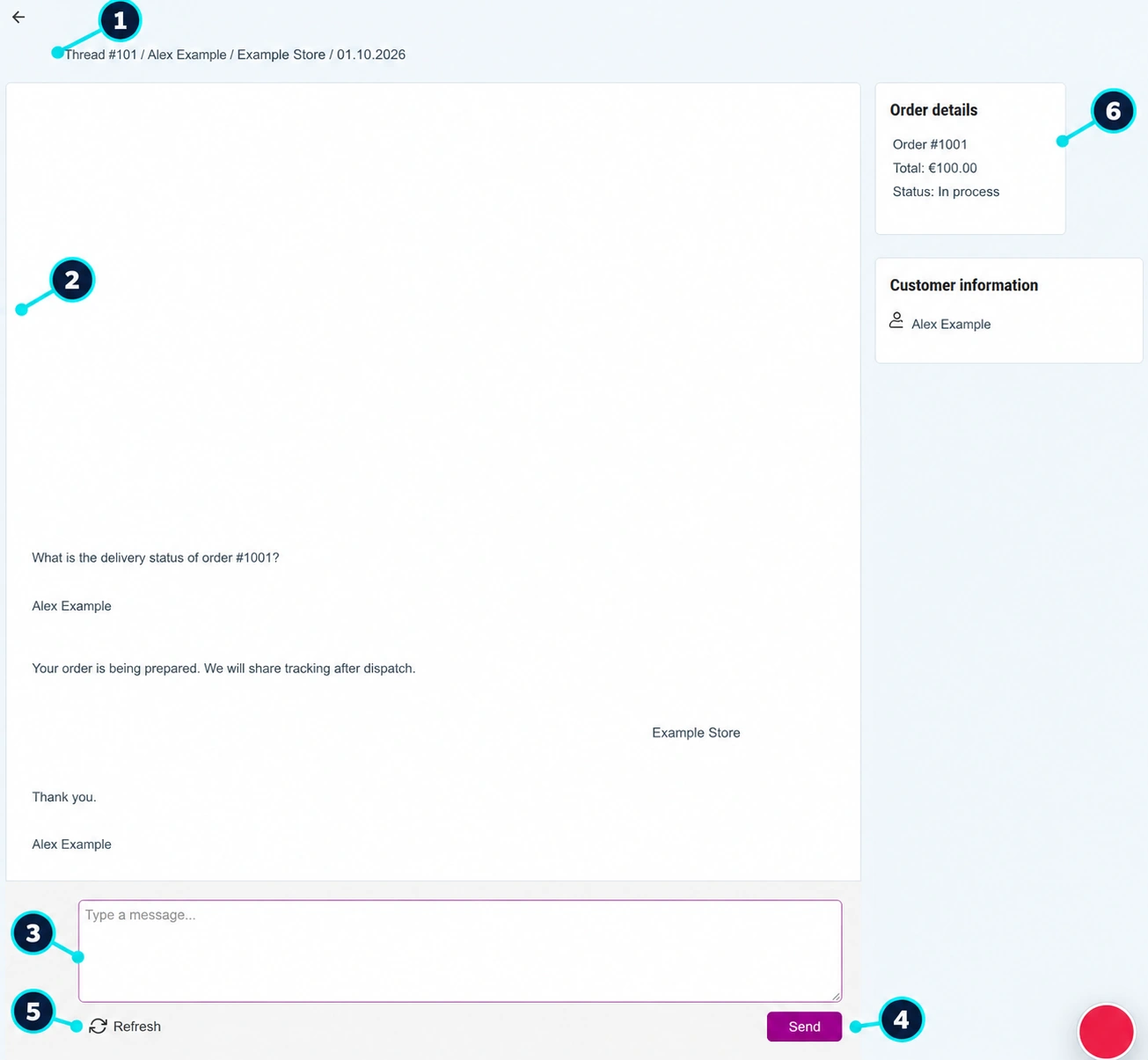
In the screenshot, participants, messages, and amounts have been replaced with English sample data. No message was sent to an actual customer while creating these instructions.
- 01
Confirm the conversation and recipient
Check the header (1) before writing. Similar names or multiple purchases by the same customer are not sufficient proof that you are in the right case.
- 02
Read the entire history
Review the conversation (2) in order. Take the latest message and previously promised deadlines into account so that you do not send the customer a contradictory reply.
- 03
Write a specific reply
Enter the reply, the relevant order number, and the next step in the message field (3). If you are waiting for additional information, clearly state what the customer needs to provide and what you will do next.
- 04
Check and send
The Send button (4) sends the message to this conversation. Before clicking, check the text, recipient, price, and deadline you are promising. This does not save an internal note.
- 05
Verify that the reply was added
After sending, check for the new entry in the history. Use Refresh (5) to retrieve current messages; if the reply is not visible, first check the system message and history before sending again.
- 06
Compare the linked order
The side information (6) displays the order and customer when the conversation is linked to them. Open the order for current processing; the message text itself does not change the price, status, delivery, or payment.
How to write a useful reply
- Answer the specific question before giving general explanations.
- State verified information: the deadline, tracking number, decision, or what still needs to be checked.
- Distinguish what has already been completed from what you only plan to do.
- State a clear next step and a realistic deadline for feedback.
- Do not request passwords or full card details. Remove personal data that is not needed for the case from images.
Conversations with administrators
- 01
Open administrator communication
Use the channel under Vendors or the appropriate side navigation option. Verify that the contact is Connect administration.
- 02
Provide context
Send the order/product/request number, the exact step, and the visible error message. Instead of writing that it does not work, describe what you expected and what happened.
- 03
Continue the existing case
If the message concerns the same problem, reply in the existing conversation. This preserves the context and previous instructions.
- 04
Verify the solution
After the team replies, check the described step and report the result. If a separate support record is needed, use instructions for getting help.
Messages and actual processing are connected but separate
Implement the agreed change in the appropriate module as well: shipments, cancellations, quotes or RMA. A message saying that the order was shipped does not create a shipment or a Tracking ID.
A message in the history confirms that it was saved in the system. Email notification delivery and the recipient's reading of the message are separate matters; do not infer them from clicking Send alone. If there is no conversation, do not create an unrelated test order; use the available contact or support for the specific case.