

CONNECT HELPCENTER · ORDERS AND CUSTOMERS
RMA returns: from the customer’s request to a completed replacement or refund
Track product returns in Connect Marketplace, review accepted and rejected items, select the calculation method, and notify the customer of the outcome.

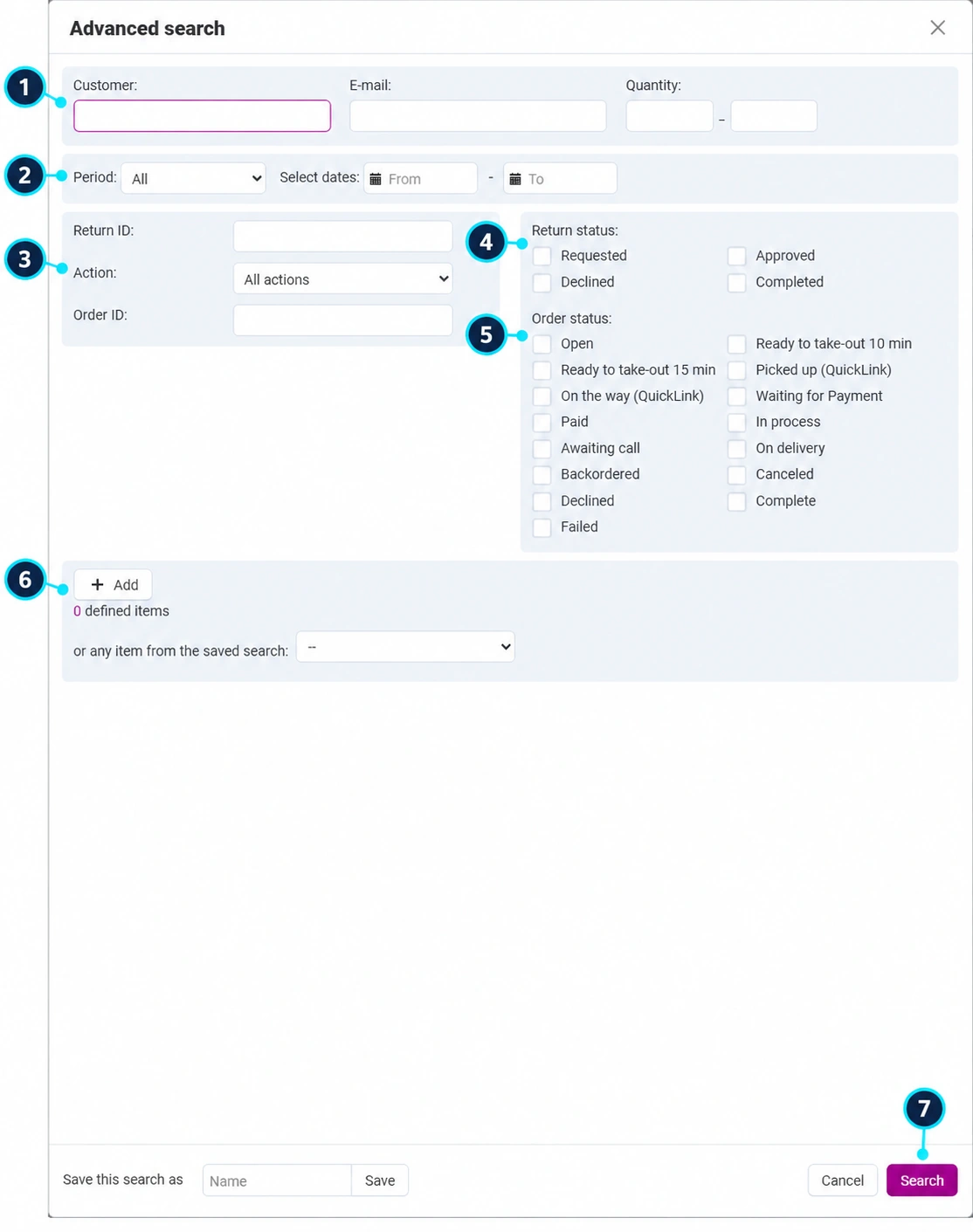
The screenshots use the English interface and sample data. Numbers connect locations in the image with the localized instructions. Click the image for a larger view. Actual orders and customer data were not changed for the demonstration.
Find a return request
Open Orders → Return requests. RMA tracks individual products and quantities from an existing order. A request to cancel the entire purchase before fulfillment is a separate procedure described in the cancellation guide.
Customers can submit an RMA request according to the product return settings, the applicable period, and the permitted order status. If the button is unavailable, check these conditions first. The screenshot shows the actual search form because the selected store currently has no RMA records.
- 01
Customer and quantity
Enter the customer or email; the quantity range (1) refers to the number of units in the request, not a currency amount.
- 02
Period
Select the request period (2) or your own dates. A range that is too narrow may hide an older open case.
- 03
Number and requested action
Use the return ID, order ID, and action type (3): product replacement or refund.
- 04
RMA request status
Requested, Approved, Rejected, and Completed (4) indicate the return stage.
- 05
Original order status
Separate statuses (5) refer to the purchase. A completed order may have an open return request.
- 06
Product as an additional criterion
By selecting a product (6), you search for returns of a specific item. Adding one in this form adds a search criterion, not a new return.
- 07
Display results
Click Search (7) and open the request number. Confirm that it belongs to the correct customer and order.
Review products, quantities, and the reason
- 01
Open the related order
In the return details, use the link to the related order. Check the purchased variants, delivered quantity, payment, and previous returns.
- 02
Check the products for return
In the Products tab, read the name, options, price, requested quantity, and reason. The request may cover part of the order, not necessarily all purchased items.
- 03
Edit accepted and rejected items while the request is requested
Select the appropriate rows and quantities, and use the product rejection action if an item is not included in the accepted return. The rejected products tab provides the reverse acceptance action. After leaving the initial status, editing items may be locked.
- 04
Record the explanation in the comments
Record what the customer requested, what was agreed, which quantities you accept, and why an item was rejected. Save the comment using the provided button, then reopen the record for verification.
Statuses and calculation actions
Requested means that the request is under review. Approved means that processing has been approved, not that the goods have arrived or that the money has been refunded. Rejected indicates a negative decision with an explanation. Completed use when the agreed procedure has been completed.
In the Actions tab, select a new status and the order recalculation method. The available options are automatic recalculation, recalculation for monetary refunds and manual recalculation, or no recalculation. The initially selected no-recalculation option will not automatically adjust the order totals.
- 01
Check the financial impact
Before saving, compare the returned quantities, item amount, discounts, tax, and shipping. The agreement on whether shipping is refunded must match the actual case and your approved policies.
- 02
Select the appropriate recalculation
Automatic recalculation delegates the calculation to the system according to the configuration. Use manual recalculation when available and when a responsible person needs to check the amounts separately. Select no recalculation only when the amounts are intentionally not to be changed by this step.
- 03
Select notifications
Enable the customer and orders department notifications when they need to be informed. The Connect administration view may also provide a separate seller notification. Do not assume that the checkboxes are enabled by default.
- 04
Save and complete the confirmation
Click Save. If the system opens an additional confirmation/recalculation step, review the amounts and available actions, then complete that step. Next, reopen the RMA and the related order.
From receiving the goods to closing the case
- 01
Arrange return shipping
Provide the customer with the address, RMA request reference, and packaging instructions. If you use a return label, a document printing action is available in the request tools.
- 02
Receive and inspect the returned items
Compare the product, variant, condition, and quantity with the approved request. Record any discrepancies before the final calculation.
- 03
Process the replacement or monetary refund
For a replacement, check the availability of the replacement item and its delivery record. For a refund, the responsible person processes the refund through a supported payment system or agreed channel and verifies the confirmation. Changing the RMA status is not confirmation of a bank transaction.
- 04
Check inventory and documents
Check the actual inventory level and the effect of the return on the order and any corrective documents. Do not manually return the quantity to inventory twice if the same effect has already been carried out automatically.
- 05
Close the case
Set the final status only after the agreed action has been completed. Check the comment, amounts, and customer notification. Preserve the case history for further tracking.