

CONNECT HELPCENTER · ORDERS AND CUSTOMERS
Quote requests: from the first request to the agreed order
Process individual quotes in Connect Marketplace: review products and quantities, modify offered prices, negotiate with the customer, and track purchase completion.

The screenshots use the English interface and sample data. Numbers link locations in the image to the localized instructions. Click the image for a larger view. Actual orders and customer data were not modified for the demonstration.
Find a quote and determine the negotiation stage
Open Orders → Quote requests. This section is used to agree on terms before purchase, for example for larger quantities, project deliveries, or customized requests. A quote request is not an order or proof of payment.
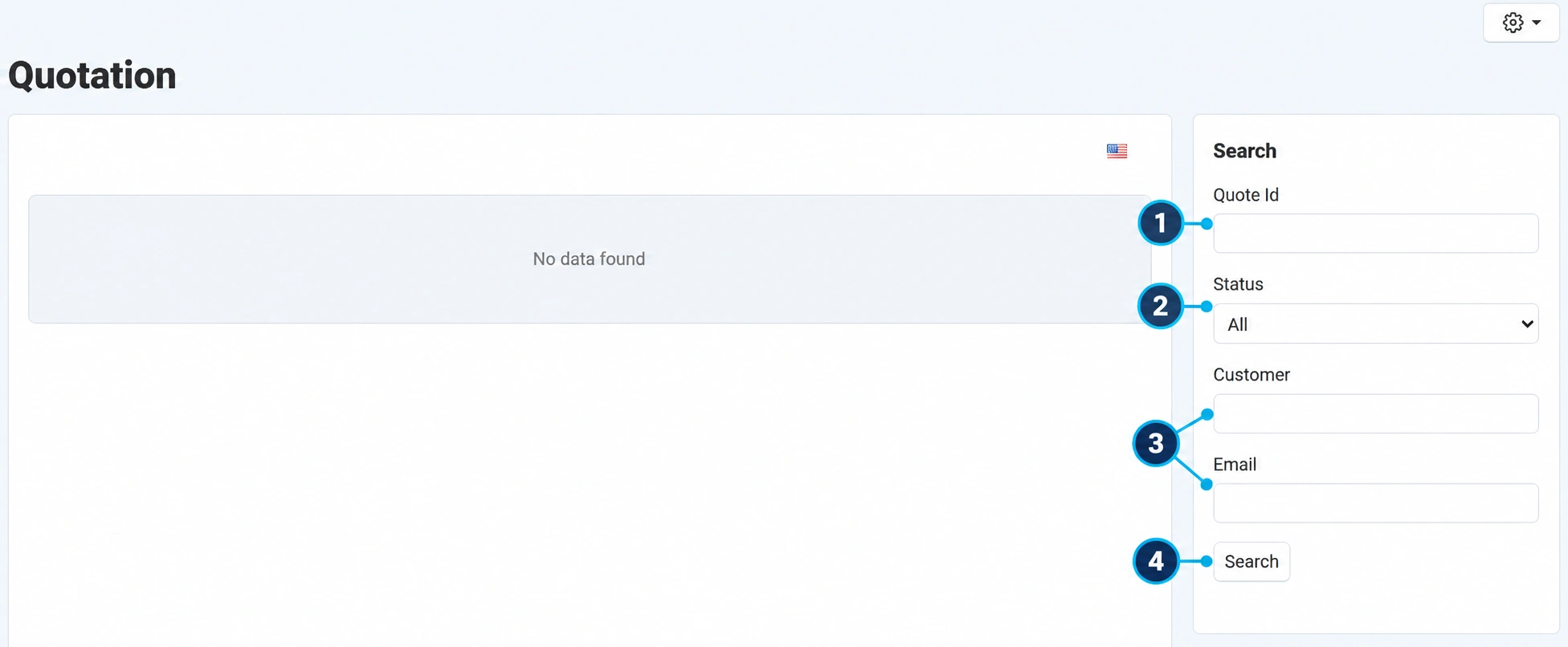
In the screenshot, the selected store has no received quote requests. The actual filters are shown; the steps below describe processing when a request arrives.
- 01
Search for the quote number
Enter the quote ID (1). The quote number and the number of the order created later are different pieces of data.
- 02
Select the negotiation stage
Status (2) distinguishes an accepted or rejected quote, seller analysis, a requested price change, and a purchased quote.
- 03
Check the customer
Search by name or email (3), especially when the same customer has sent multiple requests.
- 04
Open the result
Click Search (4), then click the number of the relevant quote. Check the products, quantities, and message before editing prices.
Quote details: data, conversation, and change history
- Details: products, selected options, quantities, and unit prices. Also read the customer's additional request and any attached materials if the quote request contains them.
- Discussions: the conversation related to the quote. Clarify the specifications, deadline, and terms here instead of losing the agreement in unrelated messages.
- Log: changes and actions during the negotiation. Check who sent the latest version and when. Do not respond based on an outdated price from an earlier message.
Edit prices and send the quote
- 01
Check what the customer is requesting
Compare the product code, variant, quantity, and availability. For a special request, confirm the full scope of the delivery or service before calculating.
- 02
Enter the agreed unit price
Enter the offered price in the appropriate line items. Distinguish the price of one item from the total line price; the total value also depends on the quantity.
- 03
Recalculate the quote
Use the recalculation action and review the result for all line items. Example: 10 items at EUR 25 each gives EUR 250 for those line items before any other amounts in the final purchase.
- 04
Write a clear response
State what the quote includes, availability, the deadline, and any limitations. Do not promise free delivery or tax treatment that is not included in the agreement and purchase settings.
- 05
Save the price and send the quote
Select the action Save price and send quote. This sends it to the customer rather than merely saving a private draft. The module records the change and sends the expected notifications.
- 06
Check the sent version
Open the log and discussion and compare the latest price, quantity, and status. The saved amount must match what you intended to offer.
Negotiations and returning a quote for revision
The customer can request a price change. Track this request through the requested change status and the new message. Open the current version, check the proposed prices and quantities, and use the action for accepting or rejecting the proposal offered by that status.
When accepting, review the confirmation of all line items before confirming the price. When rejecting, write what you can offer instead of the requested amount. If you reopen negotiations, check the log and status after sending so that the customer does not use the previous version as the valid agreement.
How the customer finalizes an accepted quote
- 01
The customer opens the valid quote
In their quote view or notification, the customer opens the latest sent quote. The purchase option is tied to the set validity period.
- 02
Transfers the quote to the cart
The purchase action transfers the products, quantities, options, and offered prices to the cart. This process may replace the cart's previous contents, so the customer should review the line items before continuing.
- 03
Completes the standard purchase
The customer checks the address, delivery, and payment, then confirms the order. Accepting the price alone does not complete checkout.
- 04
The seller checks the resulting order
Find the new purchase in the order list, compare the agreed line items and prices, and check the payment status. The purchased quote status does not guarantee that the payment has already been received.
When the purchase from a quote does not go through
Check whether the quote has expired, whether the customer is using the latest version, and whether the products and selected options are still available for purchase. After expiration, send a new confirmed quote using the available actions; do not simply send the customer the old amount without renewing the agreement. Provide support with the quote ID, a description of the steps, and the error message.