

CONNECT HELPCENTER · ORDERS AND CUSTOMERS
Cancellation Requests: Review, Decision, and Customer Notification
Track customer requests to cancel an order, verify the reason and processing stage, and record approval or rejection while checking the related order.

The screenshots use the English interface and sample data. Numbers link locations in the image to the localized instructions. Click the image for a larger view. Actual orders and customer data were not changed for the demonstration.
Opening and Searching Requests
Open Orders → Order Cancellation Requests. A customer request initially awaits a decision; receiving it alone does not mean that the order has been canceled. The option to send a request to the customer depends on the permitted statuses and the module's time settings.
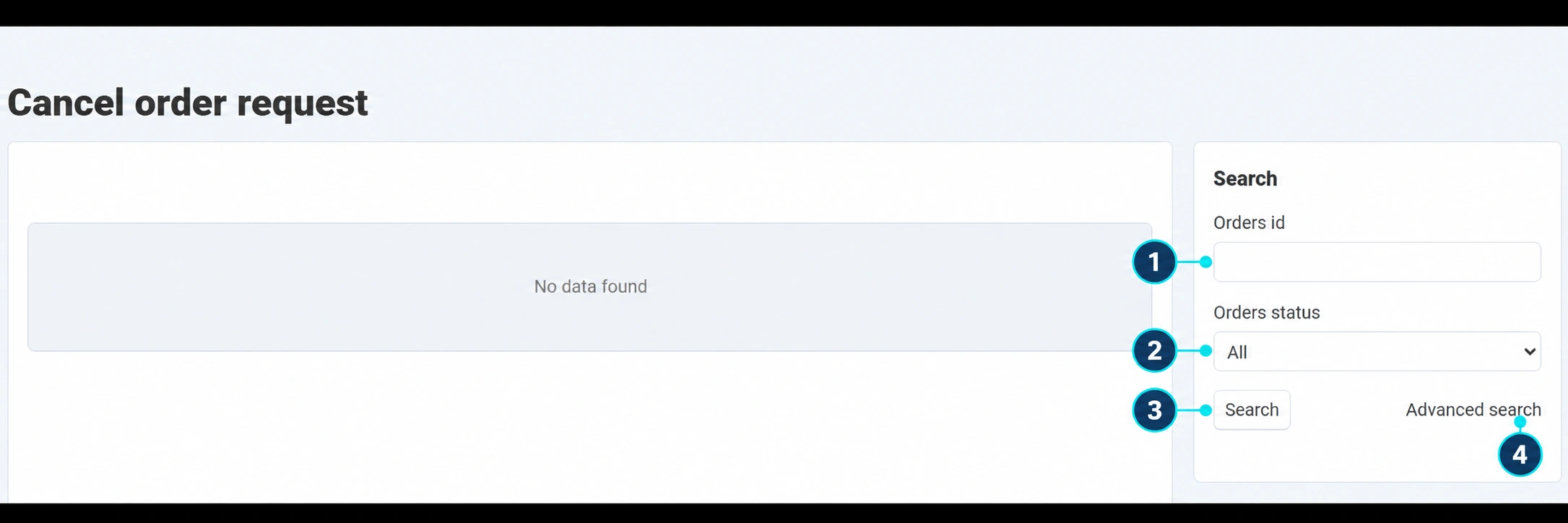
The screenshot shows the actual empty list for the selected store. When requests exist, each row links the order, its status, the request decision, amount, dates, and cancellation reason.
- 01
Enter the order number
In the Order ID field (1), enter the number provided by the customer. The request number, if you have one, is not the same as the order number.
- 02
Check the status filter
The Order Status field (2) filters the related order. For the initial review, select all statuses so that you do not accidentally hide the request.
- 03
Search the list
Click Search (3). If there are no results, check the store, number, and any previously applied filters.
- 04
Narrow the period if needed
In advanced search (4), use the available additional criteria. After processing, repeat the search to verify the saved decision.
Review the entire order before making a decision
- 01
Read the reason
Open the reason view in the request row. Distinguish between an incorrect purchase, a change of mind, a payment problem, and a request to change the product or time slot.
- 02
Open the order number
Check the items, total amount, payment method, and current status. Check whether there are shipments and a Tracking ID, and whether the goods have already been handed over to the carrier.
- 03
Stop further processing when applicable
Inform the responsible person in the warehouse or team that the request is under review. A received request does not necessarily stop physical delivery that has already begun.
- 04
Clarify uncertainties with the customer
If the customer only wanted a different time slot or address, record the agreement before making a decision. For goods that have already been delivered, check whether the process should be handled through RMA return.
Approving and Rejecting Requests
The request action/status column provides the decisions Pending, Approve, and Reject. Change the decision individually after checking the specific order. The change may be saved immediately upon selection, so do not use it for testing.
- 01
Approve a justified request
Select approval. The module sends the corresponding notification to the customer and initiates the order change to the status defined in the module settings for approved cancellations.
- 02
Check the actual result
Open the order again and check that it has ended in the expected cancellation status. If it remains in the previous status, contact support; do not assume that it is sufficient for the request to show as approved.
- 03
Explain the reason when rejecting
Select rejection and clearly explain to the customer why processing will continue or what other procedure is possible. The module sends a rejection notification, and you can track additional details in the Message Center.
- 04
Close the operational and financial aspects
Coordinate the warehouse, any time-slot reservation, and delivery. If payment has been charged, check the amount and refund procedure with the responsible person. An approved cancellation is not proof that a refund has been completed.
Final Check
- The decision and reason match the actual agreement with the customer.
- The request status and order status are consistent with each other.
- The team will not mistakenly continue packing or a reserved service.
- It has been checked whether a financial refund is required and whether there is confirmation that it was completed.
- If the shipment is already in transit, redirection/pickup and, depending on the situation, return have been agreed. The request history remains saved.