

CONNECT HELPCENTER · ORDERS AND CUSTOMERS
Booking orders: from reserved time slot to completed service
Manage product and service reservations in Connect Marketplace: find a booking order, check the date, time slot, and capacity, and connect the reservation with order processing and payment.
The screenshots use the English interface and sample data. Numbers link locations in the image to the localized instructions. Click the image for a larger view. Actual orders and customer data have not been changed for the demonstration.
Where to find booking orders
Open Orders → Booking System. Reserved time slots are tracked here. The associated purchase also appears in the regular order list, where you can check payment, items, and the customer's contact details. Product settings are described in the guide Products and services as a reservation system.
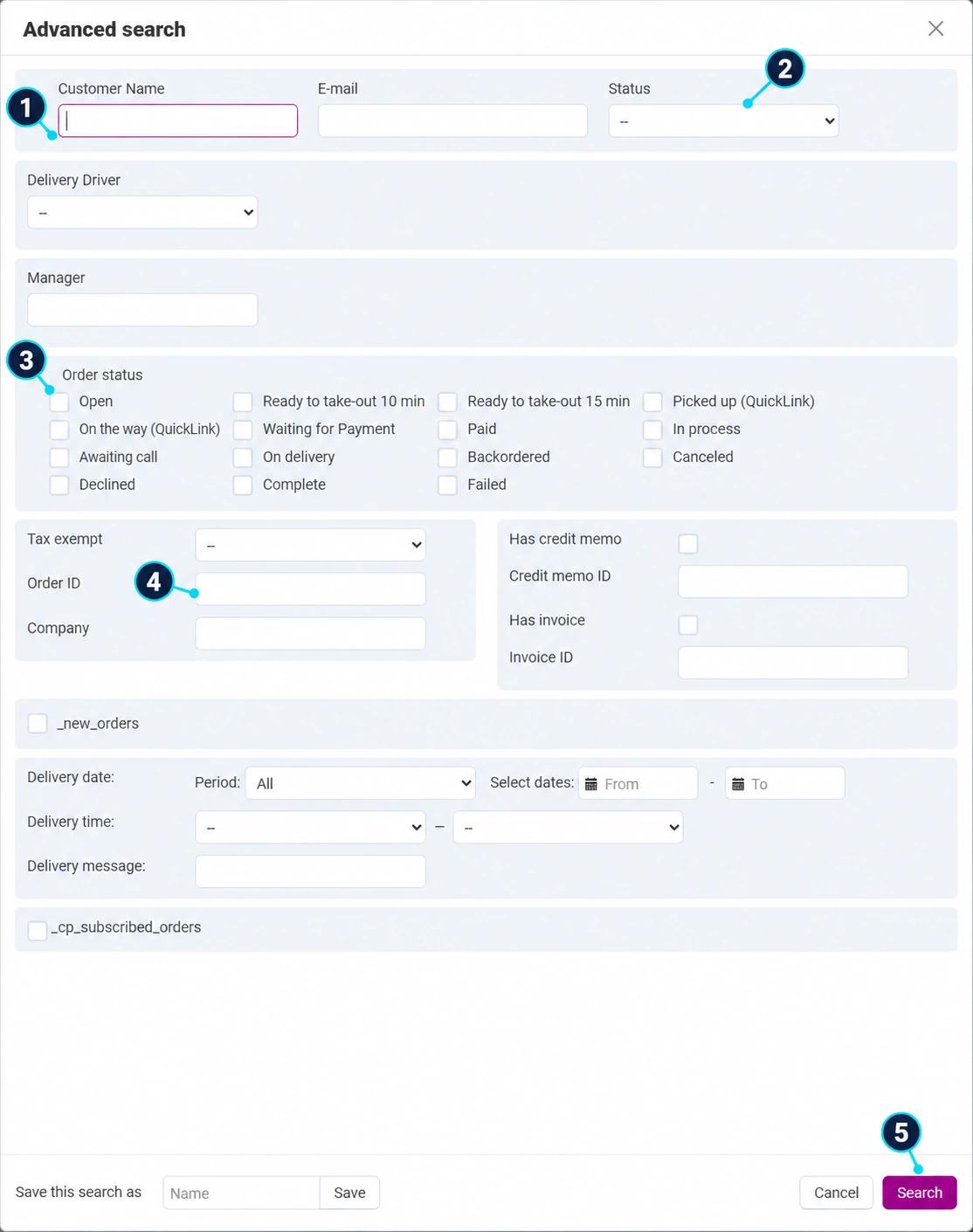
The reservation time slot and delivery date are not the same data. The delivery date describes the desired arrival of the shipment, while the booking date and time describe when the reserved service or resource will be used. There are no reservations in the screenshot shown; therefore, the actual search form is displayed without an invented record.
- 01
Find the customer
In advanced search, enter the customer's name or email (1). If you do not get any results, remove old criteria and first search using only one piece of information.
- 02
Select the reservation status
In the Status field (2), distinguish between reserved and canceled. This is the time-slot status. Payment and processing have a separate order status.
- 03
Check the order as needed
Order statuses (3) allow you, for example, to distinguish reservations awaiting payment from purchases that have already been processed. Do not assume that a reserved time slot means the order has been paid.
- 04
Narrow the search by order number
If the customer provides a number, enter it in the Order ID field (4). Also check other active filters: manager, carrier, or delivery details.
- 05
Start the search
Click Search (5), review the result, and open the number of the associated order. Do not change the status just to obtain a search result.
How to read a reservation record
- Order: a link to the purchase details. Do not confuse the reservation or time-slot number with the order number.
- Customer and email: the person to whom you should send confirmation or an explanation of a change.
- Date, time from and to: the usage time slot, according to the product's reservation type. For a time-range reservation, check both ends of the range.
- Quantity: the reserved number of units/capacity; it is not a monetary amount. View the price and total payment in the associated order.
- Status: whether the reservation is active or canceled. Compare it with the order status and the actual agreement with the customer.
Complete reservation processing
- 01
Check the purchase contents
Open the associated order. Compare the ordered product, selected time slot, quantity, and any add-ons. Check the contact details and payment according to the order details guide.
- 02
Confirm that fulfillment is possible
Check the availability of the space, equipment, or staff. If the time slot overlaps or information is missing, clarify it with the customer before confirming fulfillment. Do not move the time slot without notice.
- 03
Send the customer clear confirmation
Specify the date, time, location, number of participants/units, included add-ons, and required preparation. Use Message Centerto track the agreement.
- 04
Record a change or cancellation
When canceling, align the booking status with the associated order. Check whether the time slot is available again in the storefront view. Changing the reservation status alone does not confirm a refund.
- 05
Perform the service and complete processing
After use, record the outcome in the order note, complete the corresponding processing/status, and check the payment. For a partially used service, record what was actually completed.
Frequently asked questions
The reservation is not visible? Check that you opened the correct store, remove status filters, find the regular order, and verify that the purchased product is actually configured as a booking. An incomplete purchase is not the same as a received reservation.
The customer wants a different time slot? First check the new capacity and agree on the change. If your view does not offer time-slot editing, send Connect Support the order number, the original and desired time slots, and the quantity. Do not create a second payment just to change the date.