
CONNECT HELPCENTER · ORDERS AND CUSTOMERS
User groups: B2B pricing, membership, and administrator permissions
Connect customers with the right prices and benefits, and team members with the permissions they need. The group type determines whether it is used for purchasing or administrative work.
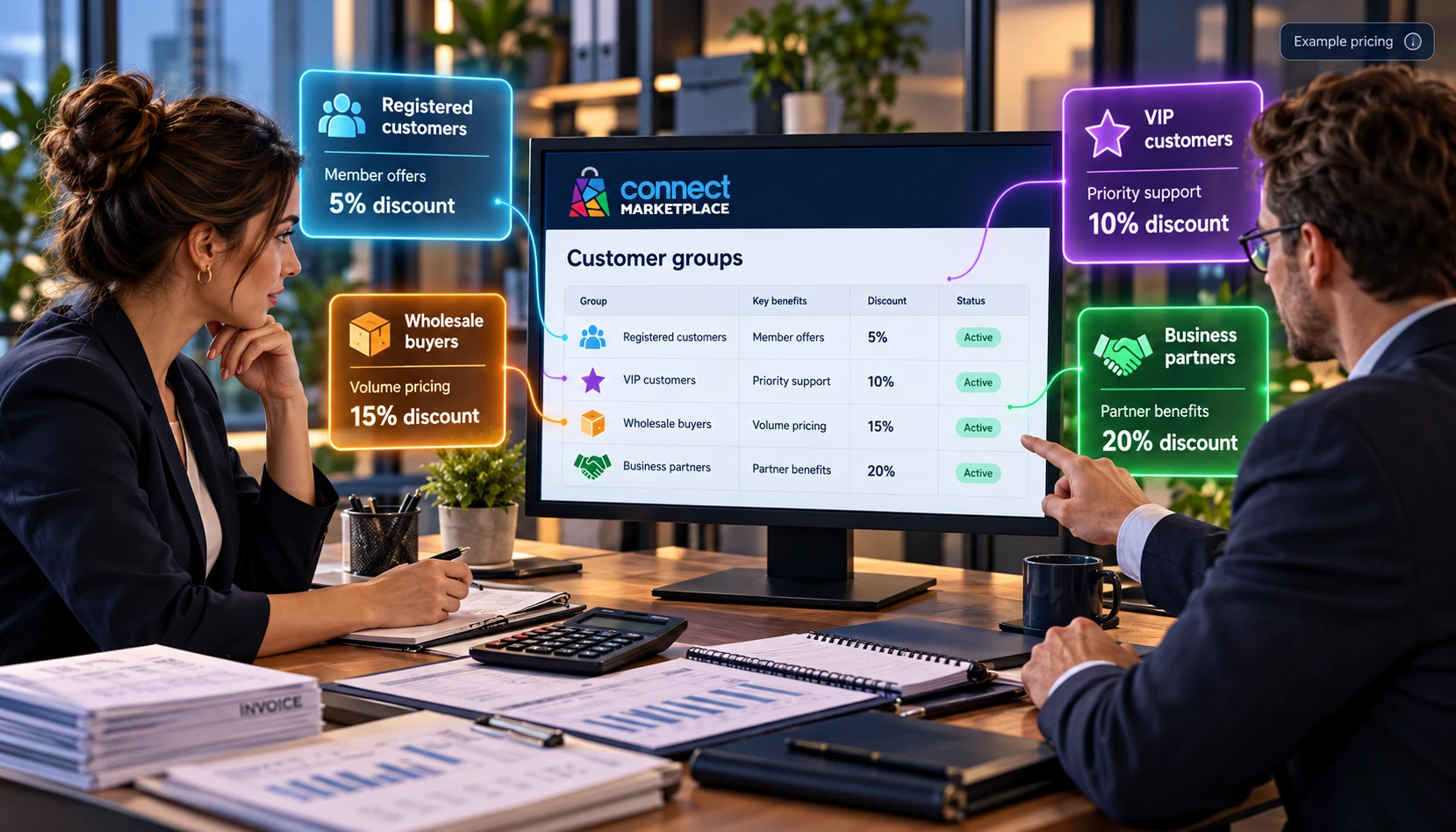
The screenshots use the English interface and sample data. Numbers connect locations in the image with the localized instructions. Click the image for a larger view. Actual orders and customer data were not changed for the demonstration.
Two different purposes of groups
Customer groups are used for special prices, quantity tiers, and benefits according to the store settings. Administrator groups/roles determine permitted actions in the administration. Assigning a B2B price list to a customer should not mean access to edit orders or products.
In the reviewed vendor account, the global user groups menu is not available. You coordinate the creation and assignment of groups and permissions with Connect administration. When you have the appropriate administrative access, the record is located under Customers → User groups.
How special prices work for a customer
- 01
Define a business group
Prepare a name and purpose, for example approved wholesale partners. Record the admission conditions and who approves membership.
- 02
Link the customer to the group
Connect administration assigns or confirms membership for an existing account according to the approved procedure. A request to access a group, if enabled, is not the same as active approval.
- 03
Set prices on the product
For the appropriate group, enter price tiers in Quantity discounts. Each group can have its own thresholds and prices: for example, a B2B price from one item and a more favorable price from ten items.
- 04
The customer signs in
The account-linked price applies after sign-in and with active membership. Registration alone does not automatically approve a wholesale benefit.
- 05
Check the correct tier
Compare the product, variant, quantity, and group. Reaching a quantity threshold may change the unit price for the applicable tier.
- 06
Check the cart and order
Check the final price after other rules, promotions, taxes, and shipping. If a customer belongs to multiple groups, do not assume that all discounts are simply added together; check the final result of the rules.
B2B price list example
Example: the regular item price is 30 EUR. For an approved B2B group, set 25 EUR from 1 item and 22 EUR from 10 items. A signed-in member with 10 items should receive the applicable tier of 22 EUR per item, with taxes and shipping checked separately. These are sample amounts, not settings for an actual product.
For verification, use an appropriate test account or review it with the responsible person. Do not change actual customers' membership just for a demonstration.
Administrator roles and access scope
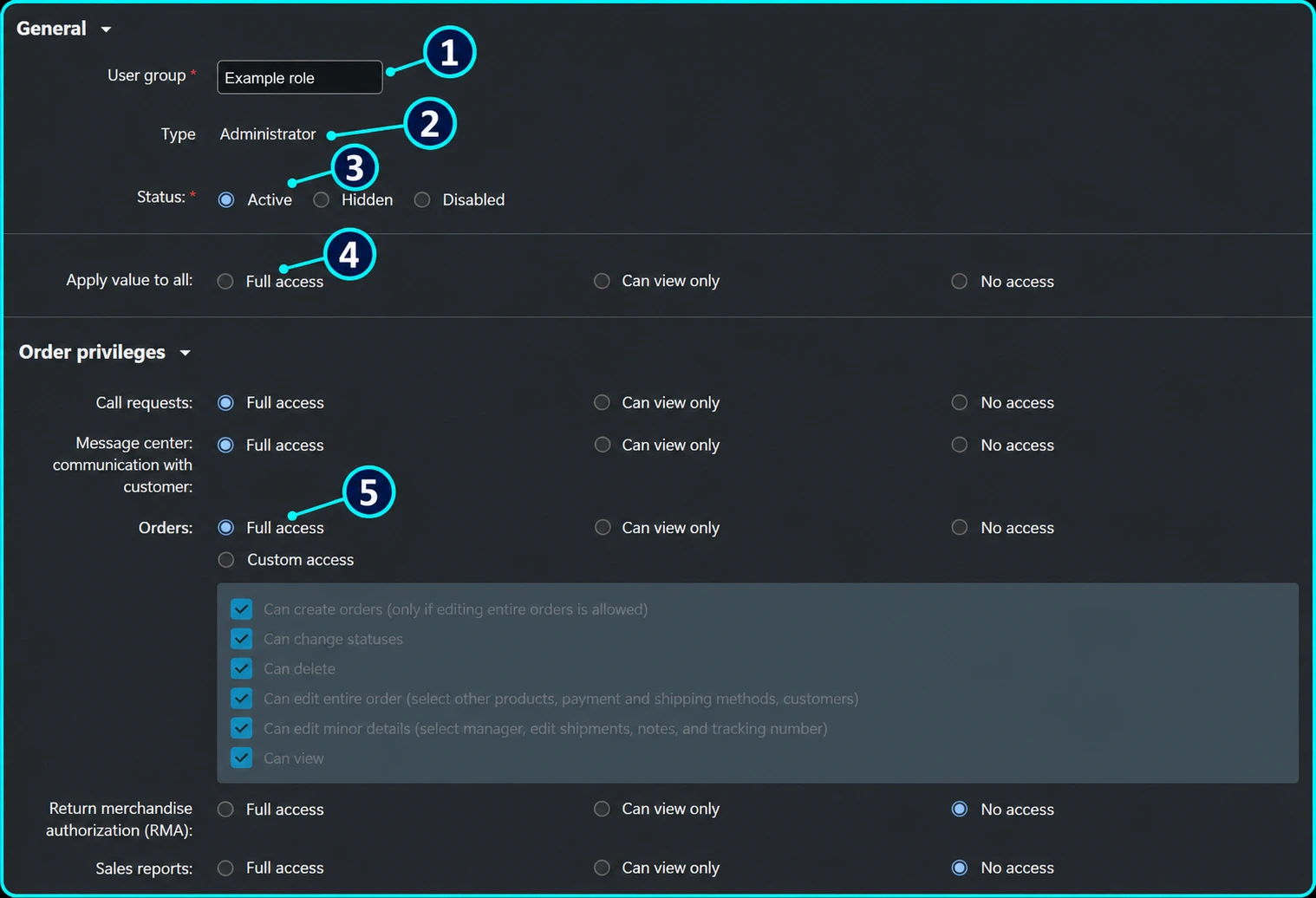
The screenshot is an example of a permissions matrix in Connect administration. The name has been replaced with a sample, and the displayed permissions are not a recommended ready-made template for your team.
- 01
Group name
Name (1) should describe the responsibility, for example operational order processing. Avoid unclear names that do not explain the purpose of access.
- 02
Check the type
Type (2) determines the application context. An administrator role is used for work in the interface; a customer group is used for purchasing rules.
- 03
Check status and membership
The group status (3) and an individual user's membership status are not the same. Check that both are appropriate before concluding that the role is effective.
- 04
Be careful with bulk changes
Apply to all (4) changes a large number of permissions. Do not assign full access to all areas when only one action needs to be enabled.
- 05
Set permissions by area
Full access, view only, or no access (5) define what is allowed in the displayed area. Where a custom level exists, the responsible person can select individual actions. Save the change only after checking the entire matrix.
Requesting permissions and final verification
- 01
List the employee's tasks
Specify which data the employee needs to see and what they should be allowed to change: catalog, orders, reports, or customer conversations. Specifically list sensitive actions such as deletion and export.
- 02
Send a request to Connect administration
Specify the store, account, and requested scope. Do not send the password. Adding a person is described in Adding team members.
- 03
Check actual access
After the assignment, the user signs in again and checks the required menus, views, and permitted actions. Do not test the permission to submit or delete actual orders just for testing.
- 04
Review permissions when duties change
Remove unnecessary permissions when the job changes or cooperation ends. Follow account security and revoking access.
Customer cannot see the agreed price?
Check whether they are signed in with the correct account, whether membership is approved and active, whether a price exists specifically for that group and product, and whether the quantity threshold has been reached. Then check the currency, tax display, and other rules. Send support the group identification, product code, and expected quantity/price.